Overview
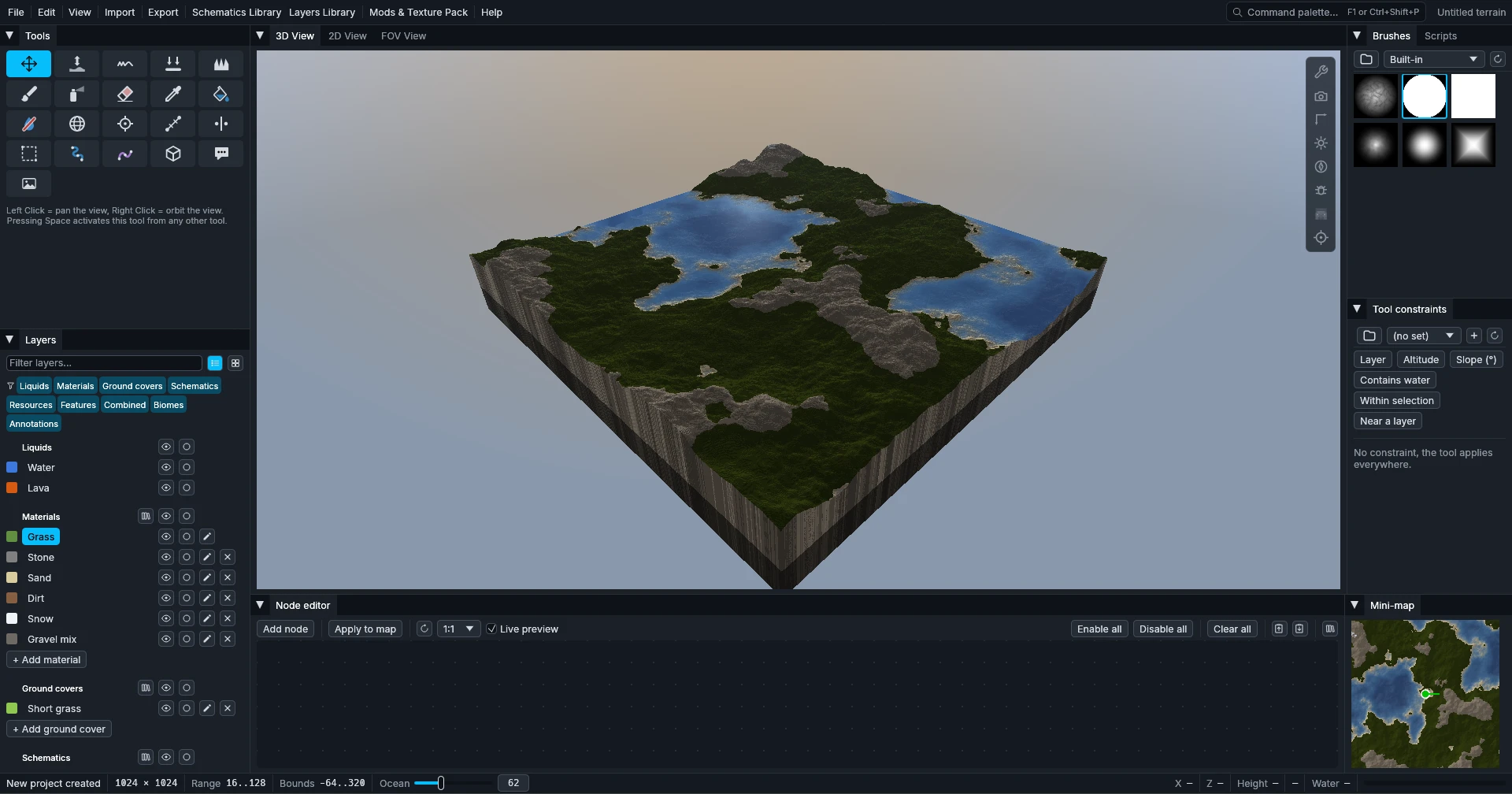
Panels
The View menu shows or hides the 3D View, the FOV View, the Mini-map, the Node Editor, the Render options and the Tools.
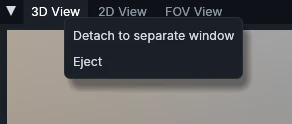
Every panel can also become a separate window: right click on its tab → Detach to separate window. Dock back, or closing the window, puts it back in place.
Views
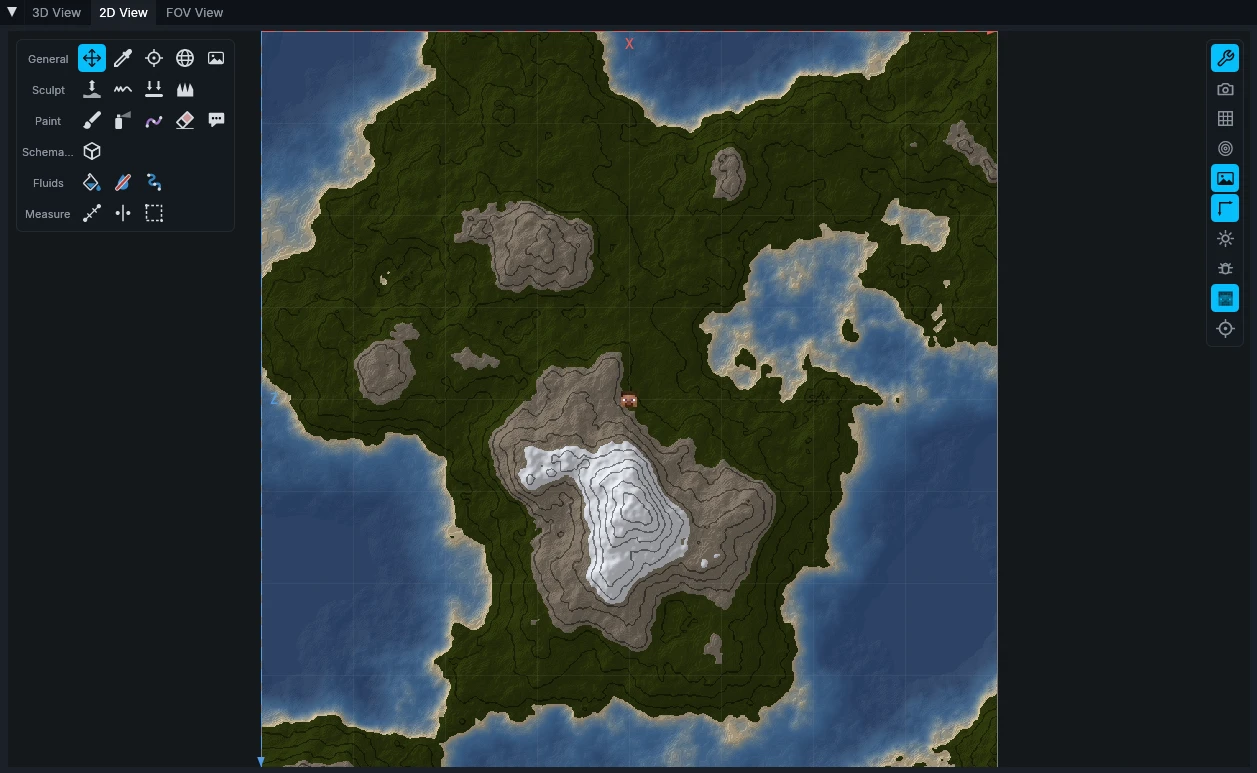
The central panel offers three ways to see your world: the 2D View from the top, the 3D View, and the FOV View to walk through it at player height. Each view has its own settings in the vertical bar at the top right, to change the render or hide parts of the interface.
Tools
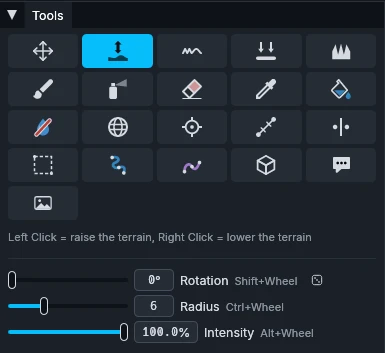
The Tools panel holds every editing tool. Below the grid, it shows how to use the selected tool and its settings, such as the brush radius and intensity.
The same tools are also available in the top left corner of the 2D and 3D views. The Show tools panel button of the view settings bar shows or hides them. See Tools for the details of each tool.
Layers
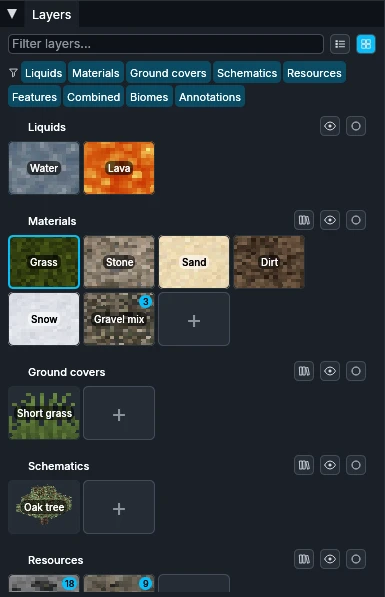
The Layers panel lists the layers of the project by category: liquids, materials, ground covers, schematics, resources, features, combined layers, biomes and annotations. The two buttons at the top switch between a List view and a Grid view, and the colored chips choose which categories the panel shows.
Every layer and every category can be shown or hidden with its eye button, or isolated to see it alone. Right click on a layer to edit, duplicate, export it or erase it from the map. The library button of a category adds a layer from the layers library, and Save to library keeps one there for your other projects.
Brushes
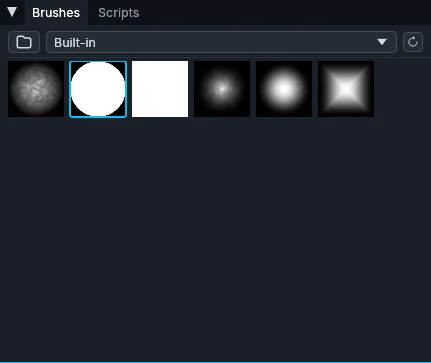
The Brushes panel holds the brush masks used by the active tool: the shape and the falloff of each stroke. Click one to use it.
You can add your own brushes: the folder button opens the brushes folder, where each grayscale PNG becomes a brush, white where it is strongest. Group them in subfolders: each one becomes an entry of the dropdown list. Reload brush folders picks up the new files.
Tool constraints
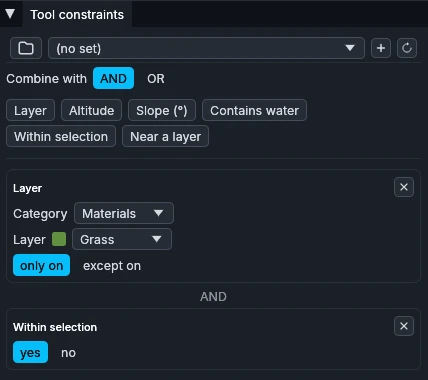
Tool constraints limit the active tool to some zones of the map. Combine conditions such as a layer, an altitude or slope range, water, the selection or the distance to a layer, and require all of them (AND) or any of them (OR). They also drive the Global painter, which paints the whole map wherever the conditions are met.
Save constraints set, at the bottom of the panel, keeps the current conditions to reuse them in any project: the dropdown list at the top loads them.
Render options
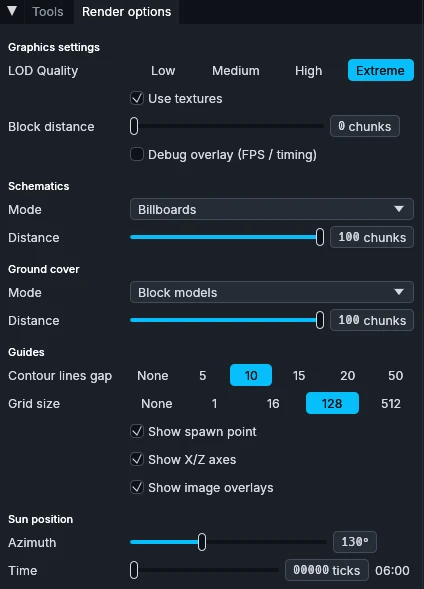
The Render options panel gathers the display settings in one place: block textures, contour lines, sun position, render distances, level of detail, axes and spawn point… Each of them is also available from the vertical bar of the views.
Node editor
The Node editor panel builds terrain procedurally from a visual graph. See the Node editor page for more details.
Scripts
The Scripts panel lists your Rhai scripts and runs them on the map. See the Scripting API for more details.